Your privacy choices
On this page
On your first visit a banner asks about your privacy choices. You can accept everything, refuse everything optional, or choose item by item, and you can change your mind later from any page.
#The banner
Until you choose, a banner called Your privacy choices sits at the bottom of the page. It says that results from our search partners are an essential part of the search, and that AI-assisted answers stay off unless you allow them. On a site that shows ads, it adds that they stay non-personalized unless you allow personalized advertising. It also names what Saved preferences would keep on this site.
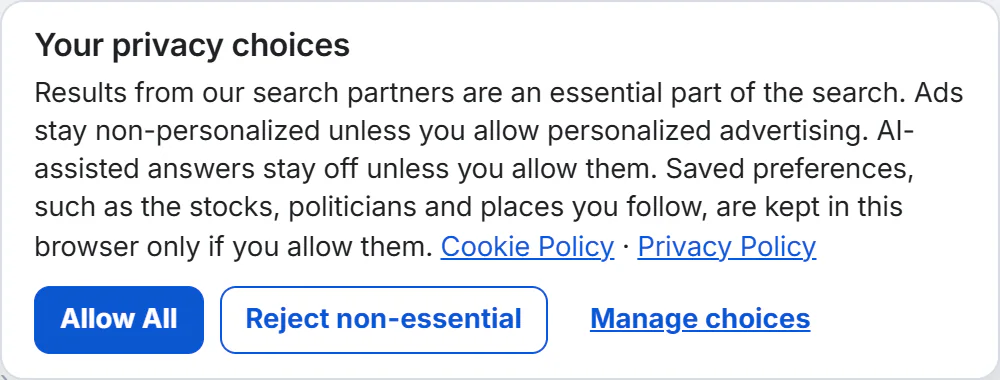
The banner has three buttons and links to the two policies that explain the choices.
- 1Links to the Cookie Policy and the Privacy Policy
- 2Allow All
- 3Reject non-essential
- 4Manage choices
- Allow All turns on every optional category.
- Reject non-essential keeps only the two always-active categories and turns everything else off.
- Manage choices opens the panel, where you choose one category at a time.
- Cookie Policy and Privacy Policy open the policies.
The banner stays on every page until you choose. After you do, it goes away.
#The panel
Select Manage choices to open the Privacy choices panel. Each category has a short description and a switch.
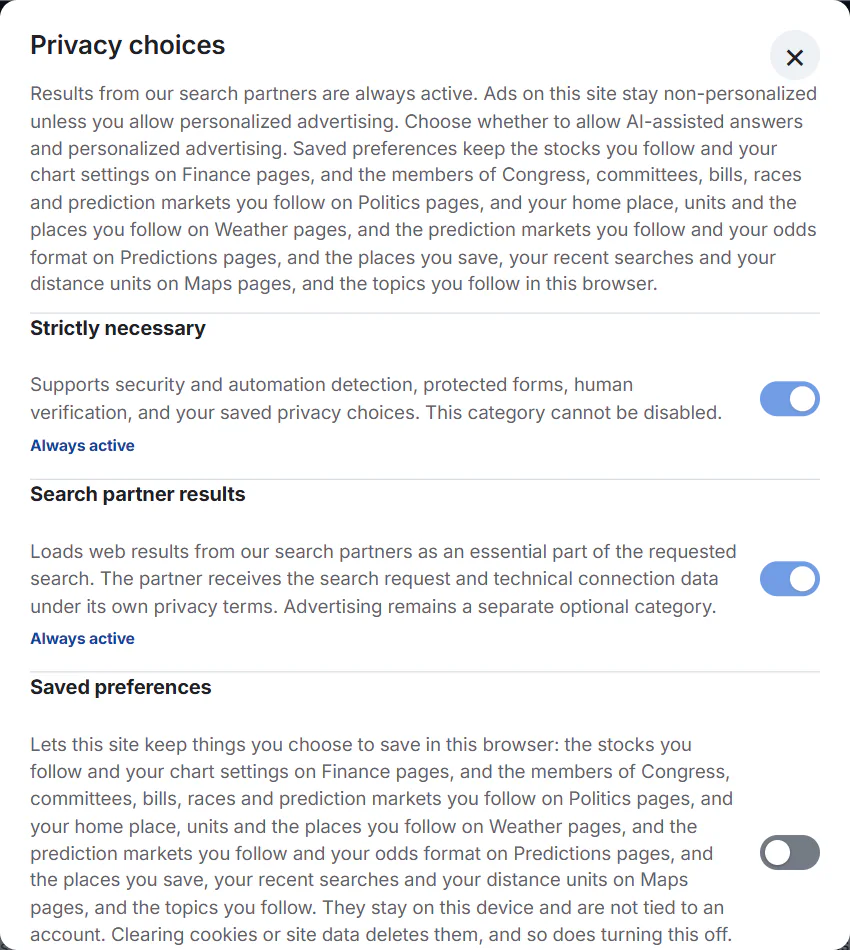
The top of the panel: two categories that are always active, then Saved preferences.
- 1Strictly necessary: always active
- 2Google search results: always active
- 3Saved preferences: off until you switch it on
| Category | What it does | Default |
|---|---|---|
| Strictly necessary | Supports security and automation detection, protected forms, human verification and your saved privacy choices. | Always active |
| Search partner results | Loads web results from our search partners as an essential part of the search you asked for. The partner receives the search request and technical connection data under its own privacy terms. | Always active |
| Saved preferences | Lets this site keep what you choose to save, such as followed items and your home place, in this browser. Shown only on sites that have something to save. | Off |
| AI-assisted answers | Allows your question and selected result context to be sent to the AI provider named in the AI Transparency Notice. | Off |
| Personalized advertising | Only on a site that shows ads; other sites have no advertising switch. The ads stay non-personalized unless you switch this on, which lets the advertising partner personalize them and measure how they perform. | Off |
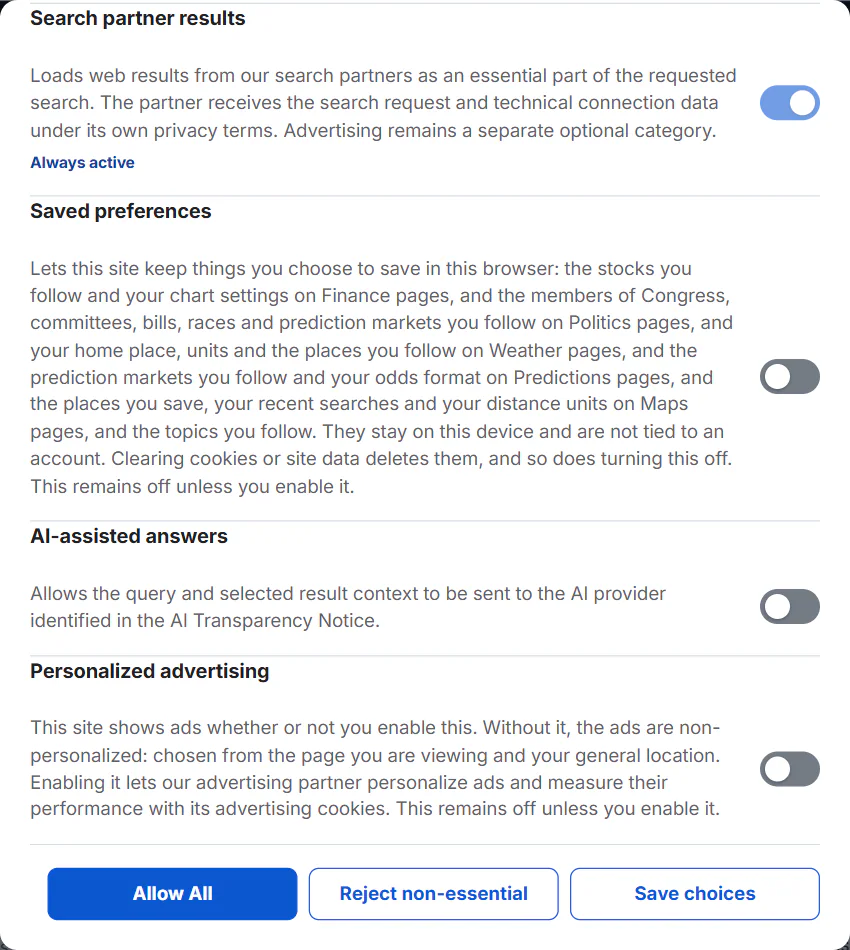
The bottom of the panel: AI-assisted answers, Personalized advertising and the three buttons.
- 1AI-assisted answers: off until you switch it on
- 2Advertising: off until you switch it on
- 3Allow All
- 4Reject non-essential
- 5Save choices
The buttons at the bottom of the panel are Allow All, Reject non-essential and Save choices, which keeps the switches as you set them. The close button at the top right, or the Esc key, closes the panel without changing anything.
#Make a choice
- On the banner, select Allow All, Reject non-essential or Manage choices.
- If you selected Manage choices, switch on the optional categories you want.
- Select Save choices.
Your choice is remembered in your browser. The banner then disappears and the shield button appears.
#Change your mind later
You can reopen the choices from any page, in four ways.
-
The shield button. Select the round shield at the bottom left of the page. It appears once you have made a choice.
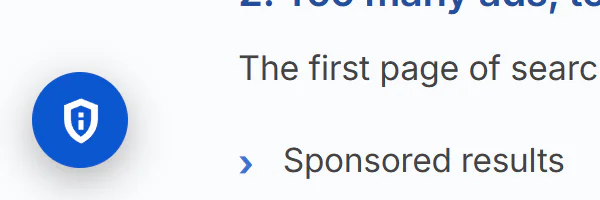
The shield button appears once you have made a choice.
- 1The privacy choices button
-
The Menu. Open the Menu and select Your Privacy Choices.
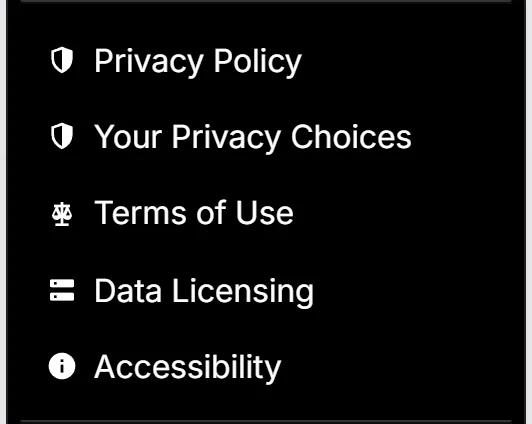
Your Privacy Choices is in the Menu, below Privacy Policy.
- 1Your Privacy Choices
-
The footer. Use the Your Privacy Choices link in the Legal column. On a phone it is repeated in the small print at the very bottom.
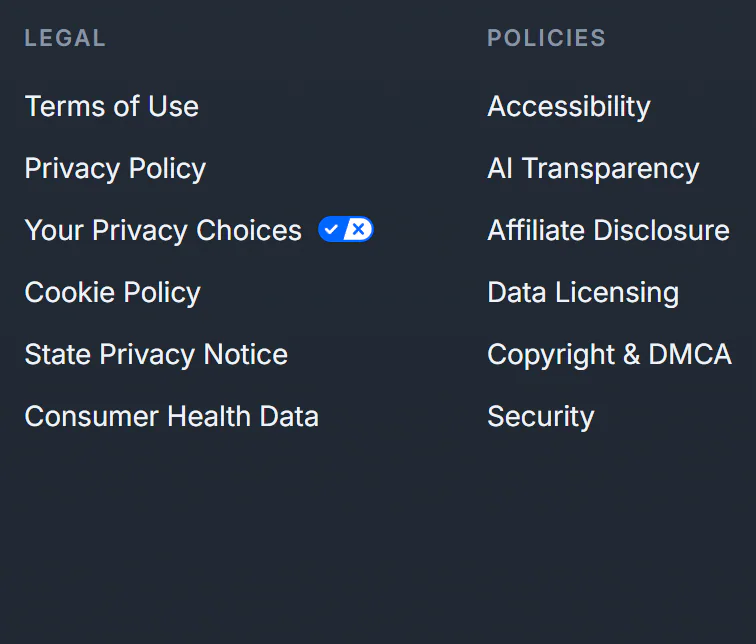
The footer's Legal column holds Your Privacy Choices, the Cookie Policy and more.
- 1Your Privacy Choices
- 2Cookie Policy
- 3AI Transparency
-
The page. Open Your Privacy Choices and select Open Privacy Choices.
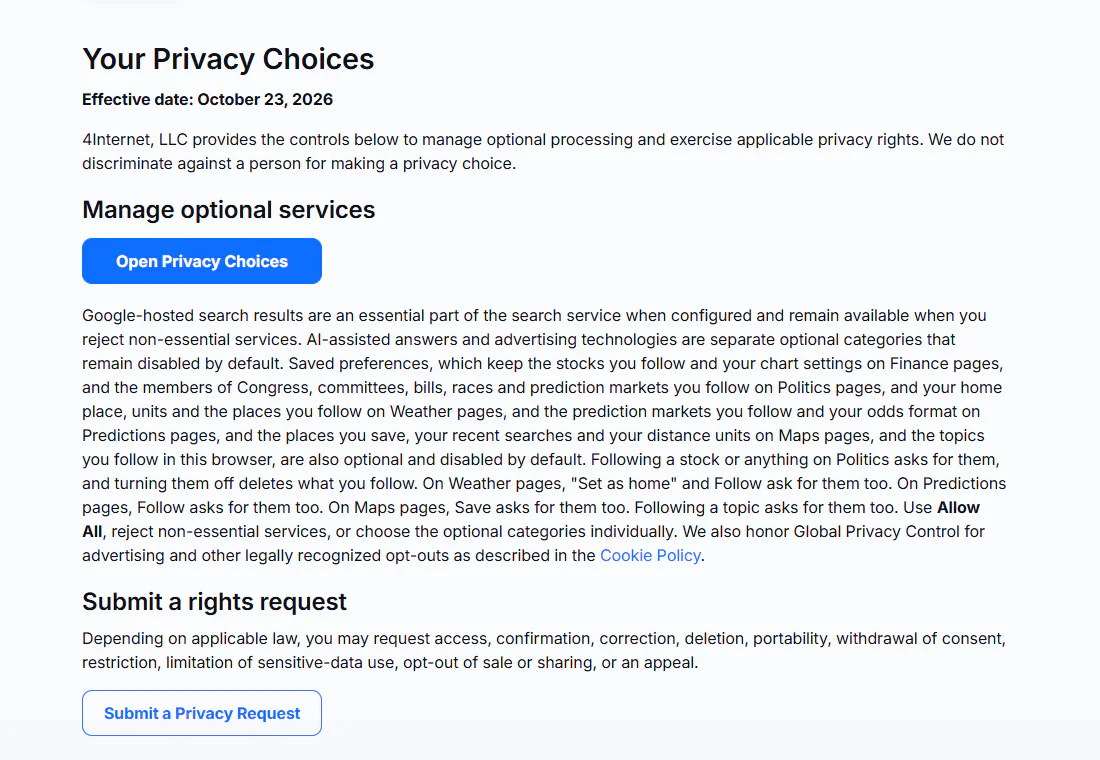
The Your Privacy Choices page has the controls and the way to make a privacy request.
- 1Open Privacy Choices
- 2Submit a Privacy Request
Some prompts lead here too. The box that asks you to allow AI answers has a Manage privacy choices button, and the box that asks about cookies when you follow something has All privacy choices.
#What happens when you change a choice
- Switching a category off applies from then on. If an optional service had already loaded on the page, the page may reload so that it stops.
- Turning off Saved preferences deletes what it kept. See Saved preferences.
- Turning off AI-assisted answers stops your questions from being sent to the AI provider. See How AI answers use your question.
- Search keeps working. Refusing optional categories does not remove 4Search's own results or Google's results.
If your browser sends Global Privacy Control, the Personalized advertising choice is switched off for you. See Global Privacy Control.
#Common questions
Do I have to accept anything to use 4Search?
No. Reject non-essential keeps only the two always-active categories, and search still works.
What is the difference between Allow All and Save choices?
Allow All turns on every optional category in one step. Save choices keeps exactly the switches you set in the panel.
Where did the shield button go?
It appears only after you have made a choice. Until then the banner is on the page instead. If you do not see it, use the Menu or the footer link Your Privacy Choices.
Why does the banner keep coming back?
The browser is not keeping the choice. That happens when site data is cleared, in some private windows, or when the browser blocks site storage. See My choices, followed items or settings are not remembered.
Can I change my choice after I clicked Allow All?
Yes, at any time. Open the panel and switch any category off. See the steps above.